Two people can point the same phone at the same sunset and come back with very different photos. Usually the gap is a few settings and a couple of habits, not talent or gear. The iPhone 18 Pro Max has a lot to adjust, including a main camera with a variable aperture and video that goes up to 4K at 120 fps. The defaults are good, and a handful of changes make them better.
This guide covers the best iPhone 18 Pro Max camera settings for photos and video, what each one does, and when to use it. You do not need any photography background. Specs come from Apple’s published iPhone 18 Pro Max tech specs. Shooting advice is general photography guidance, and we say so where the difference matters.
Understanding iPhone 18 Pro Max Camera Settings
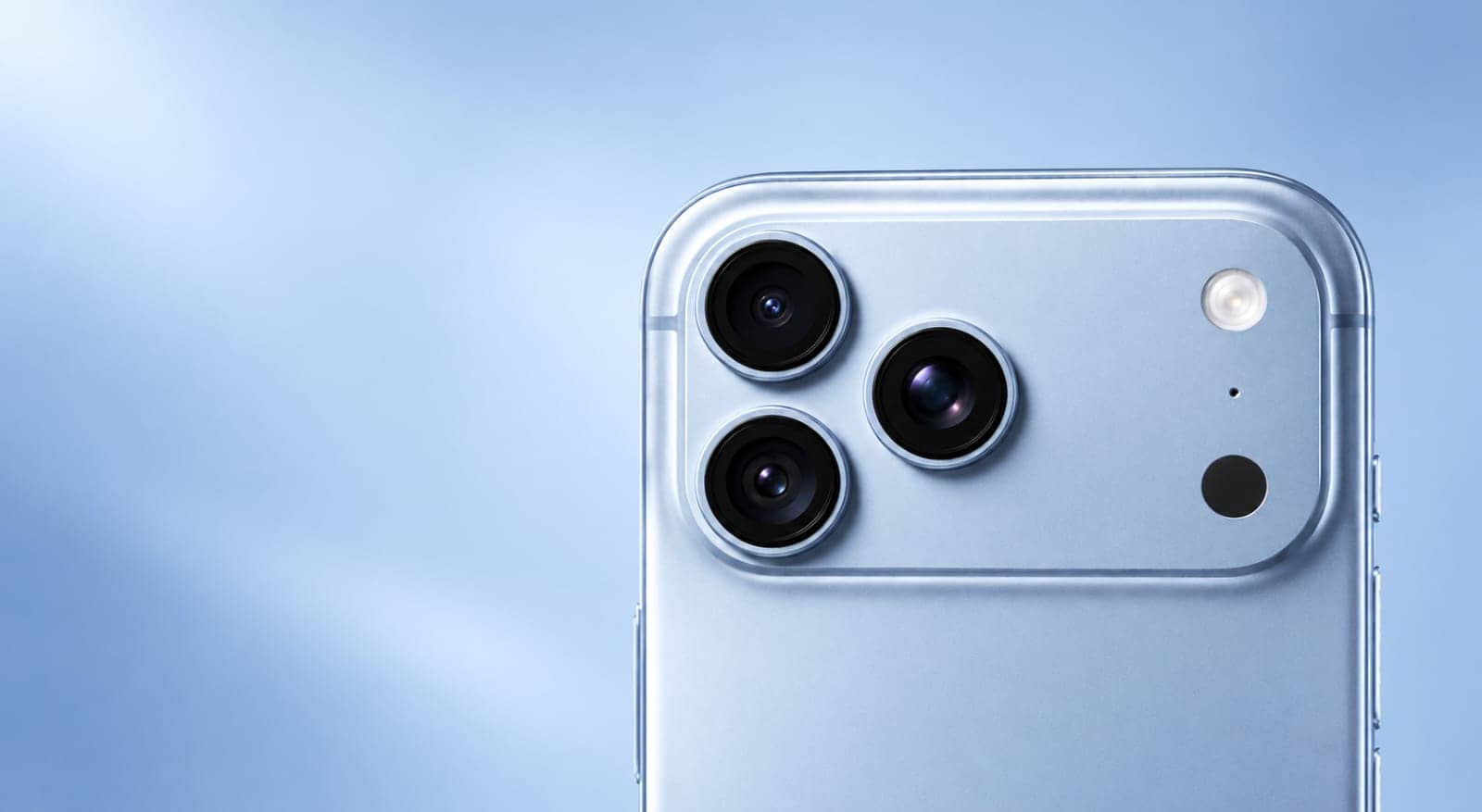
The settings make more sense once you know what each lens can do. The rear system has three 48MP cameras:
- Fusion Main (1x): 24mm, with a variable aperture of f/1.48, f/1.8, f/2.8 and f/4.0, plus second-generation sensor-shift optical image stabilisation.
- Fusion Ultra Wide (0.5x): 13mm at f/2.2 with a 120° field of view. It also handles macro.
- Fusion Telephoto (4x): 100mm at f/2.8.
Apple also lists 12MP optical-quality 2x and 8x options, which gives a 16x optical-quality range from 0.5x to 8x.
Photo resolution and image formats
The camera captures photos at 24MP or 48MP. For most shots, 24MP is the sensible choice. It is sharp and the files stay small. If you plan to crop or edit a photo, open Settings > Camera > Formats and turn on ProRAW & Resolution Control to get 48MP and ProRAW options. Apple lists HEIF, JPEG and DNG as the capture formats. The 48MP and ProRAW files are much larger, so watch your storage.
Exposure and brightness
Tap the screen where you want focus and exposure, then drag the sun icon beside the focus box up to brighten or down to darken. In bright scenes with a lot of sky, pulling exposure down a little usually keeps clouds from washing out. The Camera Control can adjust exposure too, along with depth, zoom, cameras, styles and tone, according to Apple’s specs. If you repeat the same adjustment every time, Settings > Camera > Preserve Settings can stop Exposure Adjustment from resetting.
Focus and focus lock
Tap to focus. Press and hold to lock focus and exposure, and the screen shows AE/AF Lock. Use it when the phone keeps hunting between your subject and the background, or when you want to recompose without the exposure shifting. Apple also lists smart focus tracking for the rear cameras.
Grid and Level
Turn both on under Settings > Camera. The grid splits the frame into thirds, which makes it easier to place a subject off centre. Level shows when the phone is flat for overhead shots and when the horizon is straight.
Lens selection and zoom
Choose the lens before you shoot instead of pinching the screen. Use 0.5x to fit more in, 1x for general shooting, 2x and 4x for portraits and details, and 8x for distant subjects. Digital zoom goes up to 40x, but quality falls once you pass the optical-quality range, so keep it as a last resort.
The aperture is the opening that lets light in. A wide opening (a small f-number such as f/1.48) lets in more light and softens the background. A narrow one (f/4.0) lets in less light and keeps more of the scene sharp. You can leave it automatic or set it yourself in Pro controls, which also cover shutter speed, white balance and a histogram.
Night photography
Night mode switches on by itself in dim scenes, and the phone takes a longer exposure to gather light. That makes your hands matter. Brace your elbows against your body or rest the phone on a surface, and expect moving subjects to blur.
Photographic Styles and other supported features
Photographic Styles let you set a consistent look for tone and warmth, and Apple lists Styles and Tone among the Camera Control options. A few other features are worth knowing about: 48MP macro photography, Portrait Lighting with six effects, panoramas up to 63MP, and Apple Reference Image, which Apple describes as a way to capture a verifiable photo.
Best iPhone 18 Pro Max Camera Settings for Stunning Photos
These are starting points, not rules. Adjust them to your light and your taste.
Everyday photography
The best settings for iPhone photography day to day are the plain ones. Stay on the 1x Main camera at 24MP, keep Grid and Level on, tap to focus, and nudge exposure if the scene looks too bright or too dark. Leave the aperture on automatic until you have a reason to change it. These habits work in most light and cost you nothing in storage.
Portraits
Use Portrait mode and try the Depth control to set how soft the background looks. General photography guidance: stand back and shoot at 2x or 4x instead of getting close at 1x, because wide lenses stretch faces when you are near. Portrait Lighting offers six effects, so test them on a few shots before you commit to one.
Landscapes and travel
Use 0.5x for big scenes and buildings, and 1x when you want cleaner detail. If you set the aperture yourself, f/4.0 keeps more of the scene in focus. Switch Level on so horizons stay straight, and consider 48MP if you may crop or print later.
Food photography
Sit near a window and turn the flash off. Shoot at 1x or 2x so the plate does not look distorted, tap the dish to focus, and lower the exposure slightly if the highlights on sauces or plates look blown out. For texture shots, move in close and use macro instead of zooming.
Low-light photography
Let Night mode do its work and hold the phone still. The Main camera has the largest sensor of the three rear cameras, so it usually copes with dim light better than the Telephoto does. If you set the aperture manually in Pro controls, f/1.48 lets in the most light. Wipe the lens first, because a smudge turns every light source into a glare.
Close-up shots
The Ultra Wide camera handles 48MP macro photography. Move the phone close to the subject instead of zooming in, tap to focus, and avoid casting your own shadow over it. Small movements are exaggerated up close, so rest your hands on something if you can.
Social media photography
24MP is plenty for a phone screen. Shoot in the orientation you plan to post, and leave some empty space around the subject because apps crop. If you want a set of photos to look alike, choose one Photographic Style and stick with it.
Best iPhone 18 Pro Max Video Settings
Open Settings > Camera > Record Video to choose your resolution and frame rate. According to Apple, the iPhone 18 Pro Max records 4K Dolby Vision video at 24, 25, 30, 60, 100 or 120 fps from the Main camera, and 1080p at up to 120 fps.
Resolution and frame rate
For everyday clips, 4K at 30 fps is a safe default. Choose 60 fps for sport, kids and anything fast. Choose 24 fps if you want the slightly softer motion of film. Higher frame rates and 4K produce bigger files, so drop to 1080p when storage matters more than detail.
Stabilisation
The Main camera uses second-generation sensor-shift optical image stabilisation, and the Telephoto uses 3D sensor-shift stabilisation. Apple also lists cinematic video stabilisation at 4K, 1080p and 720p. For walking or running shots, Action mode records up to 2.8K Dolby Vision at 60 fps. It tends to work best in good light, which is general guidance rather than an Apple spec.
Exposure, focus and white balance
Tap to set focus and exposure before you press record, and lock them if the scene stays the same. Pro controls for aperture, shutter speed, white balance and a histogram are listed for video as well. The Record Video menu also has a Lock White Balance option, which stops colours from shifting between shots.
Slow motion and Cinematic mode
Slow motion runs at 1080p up to 240 fps, or at 4K Dolby Vision up to 120 fps on the Main camera. Cinematic mode records up to 4K at 60 fps, and you can edit the focus afterwards in Photos.
Sound
Apple lists four studio-quality microphones, wind noise reduction, audio zoom and Audio Mix. Even so, wind and distance beat any microphone, so get close to the person talking when you can.
Instagram Reels
Record vertically from the start so you do not have to crop later. 4K at 30 fps is enough for most Reels, and 60 fps helps when there is a lot of movement. Social apps recompress uploads, so extreme settings rarely show up in the final post.
YouTube videos
Shoot horizontally. 4K at 24 or 30 fps suits talking and tutorials, and 60 fps suits fast action. A tripod or a stable surface does more for quality than any menu setting.
Vlogging
The 18MP front camera records 4K at up to 60 fps. Apple also lists Dual Capture up to 4K at 30 fps, which records with two cameras at once. Check the frame before you start, because you cannot see a bad angle once you are talking.
Everyday recording
For quick clips, press and hold the shutter for QuickTake, which Apple lists at up to 4K at 60 fps. You can also take 8MP stills while recording 4K video, which is handy when a moment is worth keeping as a photo.
Creators who work with ProRes, ProRes RAW and Apple Log 2 can find them in Apple’s specs, with ProRes up to 4K at 120 fps through external recording. Those formats produce very large files and are meant for editing.
Tips to Capture Better Photos and Videos
The best iPhone 18 Pro Max photography tips are mostly about the scene, not the phone.
Use natural light
Soft daylight, such as a shaded spot or a window, flatters most subjects. Harsh midday sun creates hard shadows, so move the subject or wait for better light.
Compose before you tap
Place the subject off centre on the grid. Look for lines that lead the eye, and check the edges of the frame for things you do not want, like a bin or a stray cable.
Keep the phone steady
Hold it with both hands, tuck your elbows in, and press the shutter gently. In low light, prop the phone on a wall, a table or a tripod.
Skip heavy digital zoom
Use the optical range, up to 8x, and walk closer when you can. Cropping a 48MP photo later usually works better than pinching to 30x.
Clean the lenses
Fingerprints are the most common reason for hazy photos. Wipe the lenses with a clean, dry microfibre cloth. There is also a Lens Cleaning Hints option in Settings > Camera.
Choose a clean background
A plain wall, open sky or tidy shelf makes the subject stand out. Check what sits behind someone’s head before you shoot.
How to Protect Your iPhone Camera Lenses
Every tip above assumes the lenses are clear. Everyday life is hard on the camera area, since keys, coins, gritty pockets and rough tabletops can all leave marks.
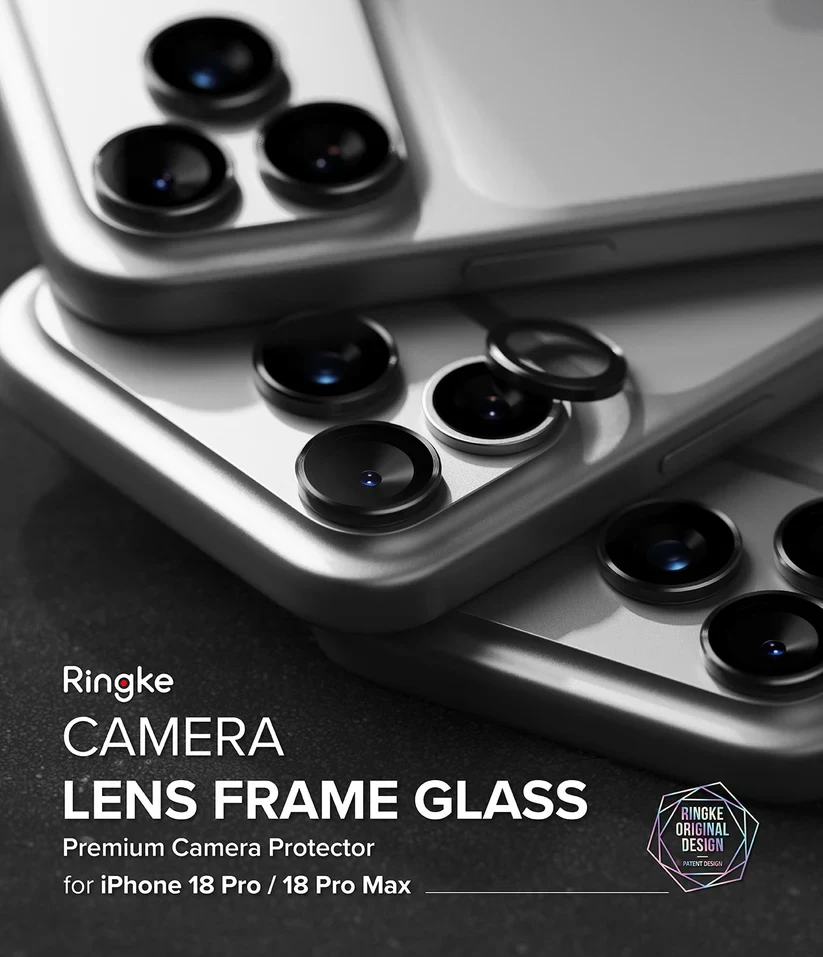
Apple lists a sapphire crystal lens cover in the camera specs, which is a hard material. A lens protector adds a replaceable layer on top, which some people prefer to leaving the lens bare. No accessory can promise that lenses will never be marked or damaged. What our iPhone 18 Pro Max camera lens protector does is add 9H tempered glass and an aluminium alloy frame over each lens. It comes as a 2 pack with an installation tool, and we list it as case friendly.
Cleaning first. Dust trapped under a protector shows up in photos, so wipe the lenses with a microfibre cloth and check them in good light before you apply anything.
Installation. Take your time with the alignment and use the included tool. We have an installation guide if you want to see the steps before you start.
Compatibility. This protector is listed for the iPhone 18 Pro Max and the iPhone 18 Pro. Confirm your model on the product page before ordering.
Why Pair Your Camera Protector with an iPhone Case?
A lens protector covers the lens glass. A case covers the body, which means the back, the sides and the corners. They protect different parts of the phone, so they do different jobs.
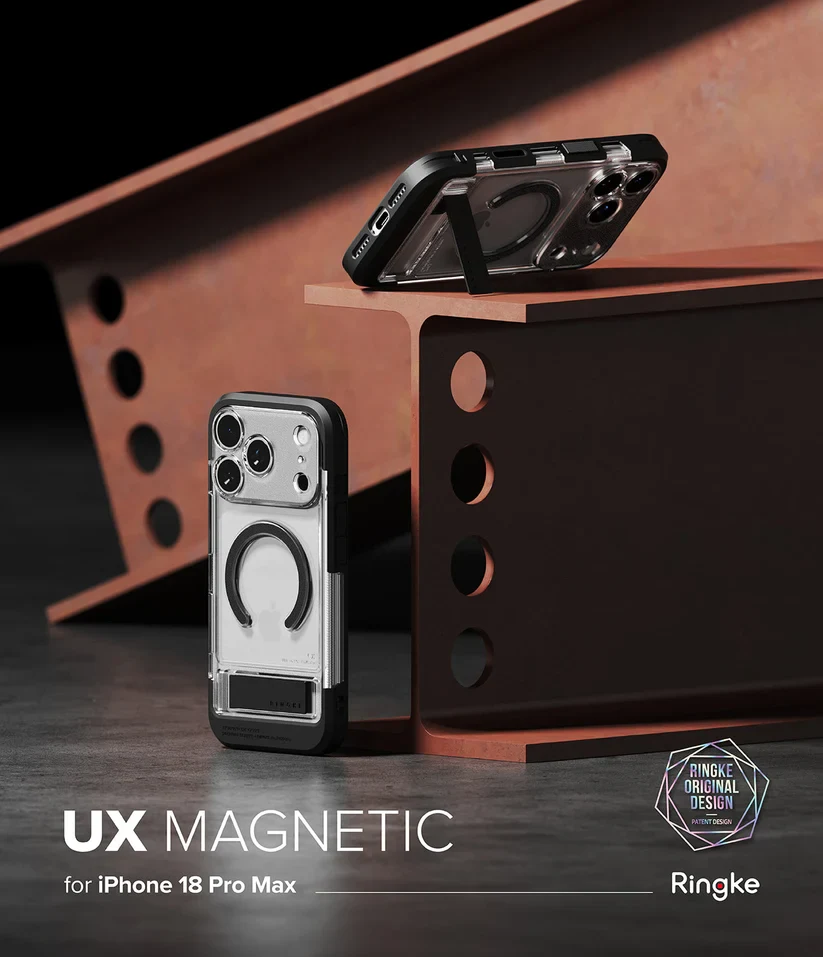
Browse the iPhone 18 Pro Max cases collection and read each product page for what that specific case offers, such as how it fits, how it grips and what protection it claims. Rely on the details listed there and not on assumptions. After fitting any case, take a test photo to confirm the camera cutout leaves the lenses and flash clear.
If you also want to cover the display, we have tempered glass screen protectors for the iPhone 18 Pro Max.
Quick Camera Settings Checklist
| Scenario | Setting or technique | Expected benefit |
|---|---|---|
| Everyday photos | 24MP, 1x Main, Grid and Level on, tap to focus | Balanced detail, small files, straighter framing |
| Photos you will crop or edit | 48MP or ProRAW (Settings > Camera > Formats) | More detail to work with, larger files |
| Portraits | Portrait mode at 2x or 4x, adjust Depth | Softer background, less face distortion |
| Landscapes and travel | 0.5x or 1x, Level on, f/4.0 if set manually | Wide view, more of the scene in focus |
| Food | Window light, 1x or 2x, no flash, slight exposure drop | Natural colour, no flash glare |
| Low light | Night mode, braced phone, f/1.48 if set manually | Brighter shots with less blur |
| Close-ups | Ultra Wide macro, move closer instead of zooming | Fine detail without digital zoom |
| Social photos | 24MP, shoot in the posting orientation, one Style | Cleaner crops, a consistent look |
| Reels and everyday video | 4K at 30 fps, 60 fps for fast motion, vertical | Smooth clips ready to post |
| YouTube video | 4K at 24 or 30 fps, tripod or stable surface | Steady footage with a film-like feel at 24 fps |
| Walking or running video | Action mode (up to 2.8K at 60 fps) | Smoother handheld footage |
Conclusion
Start with the basics. Shoot at 24MP on the 1x camera, switch on Grid and Level, tap to focus, and watch your exposure. Move to 48MP, Pro controls and the aperture settings once you know what you want to change. For video, pick 4K at 30 or 60 fps, steady your hands and clean your lenses before you start. Then experiment, because the only way to learn what a setting does is to take the same shot two ways and compare.
Frequently Asked Questions
What are the best camera settings for the iPhone 18 Pro Max?
For photos, stay at 24MP on the 1x Main camera, turn on Grid and Level, tap to focus and adjust exposure when needed. Switch to 48MP or ProRAW only for shots you plan to edit. For video, 4K at 30 or 60 fps covers most situations. Leave the aperture on automatic unless you want a specific look.
How can I take sharper photos with my iPhone?
Clean the lenses, hold the phone with both hands, and tap to focus on your subject. Use optical zoom steps instead of heavy digital zoom, and shoot in good light. Image stabilisation helps with hand shake, but it cannot freeze a moving subject, so a faster moment needs more light.
What are the best camera settings for low-light photography?
Use Night mode, stay on the 1x Main camera when you can, and brace the phone against something solid. If you set the aperture manually in Pro controls, f/1.48 lets in the most light. Wipe the lens first to avoid glare around bright lights.
Which video settings are best for social media?
4K at 30 fps works for most posts, and 60 fps suits fast action. Record vertically for Reels and Stories, and horizontally for YouTube. Social apps recompress uploads, so there is little point in choosing the largest file settings.
Can a camera lens protector affect image quality?
Any extra layer over a lens is worth checking. We list the glass as high transparency, but a dusty or misaligned protector can cause smudges or glare, especially around bright lights at night. Take test photos after installation, including a night shot, and refit it if anything looks off. A protector does not improve image quality, and it is not meant to.
Is a phone case enough to protect the camera lenses?
A case mainly protects the body, corners and back. Whether it helps the lenses depends on the design, so check the product page for the camera cutout and any raised edges that are actually listed. A lens protector adds a layer directly over the lens glass. Neither one can guarantee against damage.